In the last post, we set up Ollama on Docker. We will now continue with setting up Open WebUI, so that we can actually talk to the LLM.
What is Open WebUI?
Open WebUI is an extensible, feature-rich, and user-friendly self-hosted WebUI designed to operate entirely offline. With over 50K+ GitHub stars, it has emerged as a leading option for organizations looking to deploy Large Language Models on their own infrastructure. For mid-sized businesses starting their on-prem LLM journey, Open WebUI provides a robust platform that supports various LLM runners, including Ollama and OpenAI-compatible APIs, making it an ideal choice for connecting your local models to a secure, accessible interface.
Current Ollama setup
We already have Docker installed, and Ollama running. Below is the docker-compose.yml file,that we will modify to include Open WebUI.
services:
  llm:
    image: ollama/ollama:0.21.1
    environment:
      - OLLAMA_KEEP_ALIVE=1h
      - OLLAMA_CONTEXT_LENGTH=32000
      - NVIDIA_VISIBLE_DEVICES=0
    ports:
      - 11434:11434
    volumes:
      - ~/ollama:/root/.ollama
Above we are running an Ollama container
- image – The official Ollama image from DockerHub
- environment
- OLLAMA_KEEP_ALIVE – This is how long it should keep the model loaded into memory without activity
- OLLAMA_CONTEXT_LENGTH – This is the token limit that the LLM will use. *You may have to adjust this depending on available memory*
- NVIDIA_VISIBLE_DEVICES – This is which GPU(s) that you want to use to load the model
- ports – We are mapping the container port 11434 to the host port 11434. This allows us to talk to the model outside the docker network
- volumes – This is mapping a folder on the host machine to a folder inside the container. This allows us to save the models if the container shuts down.
Adding Open WebUI
We are going to add a service to the docker-compose.yml file above, to include the Open WebUI container.
services:
  llm:
    image: ollama/ollama:0.21.1
    environment:
      - OLLAMA_KEEP_ALIVE=1h
      - OLLAMA_CONTEXT_LENGTH=32000
      - NVIDIA_VISIBLE_DEVICES=0
    ports:
      - 11434:11434
    volumes:
      - ~/ollama:/root/.ollama

  web:
    image: ghcr.io/open-webui/open-webui:v0.8.12
    depends_on:
      - llm
    environment:
      - OLLAMA_BASE_URLS=http://llm:11434
      - WEBUI_AUTH=false
      - WEBUI_SECRET=<super-secret>
    restart: unless-stopped
    ports:
      - 8080:8080
    volumes:
      - ~/openweb-ui:/app/backend/data
We have added a service called web to the compose file.
- image – The official Open WebUI image from the GitHub Container Registry
- depends_on – says that we need the “llm” service running in order for this to work correctly
- environment
- OLLAMA_BASE_URLS – This tells Open WebUI where Ollama is running. The docker network will automatically resolve “llm” to the Ollama container
- WEBUI_AUTH – I am setting this to “false”, which turns the authentication off. In a real world scenario we would want authentication on, but for the purposes of this demo we don’t need it
- WEBUI_SECRET – This is a key that you need to generate in order to sign requests, and encrypt sensitive data
- restart – Tells docker to restart the container, unless you stop it
- ports – Maps port 8080 on the host to port 8080 inside the container. This allows us to open the UI in a browser
- volumes – This is mapping a folder on the host machine to a folder in the container. This will persist your chat history and settings across sessions
Now we can start the containers by running the command below from the same directory as the docker-compose.yml file
docker compose upThis will start all of the “services” in the docker-compose file.
It takes Open WebUI about a minute to spin up for the first time, so don’t be worried if you get an error right away.
Opening Open WebUI in a browser
Now that everything is up and running you should be able to open the UI in a browser. Open up your favorite browser (for some reason Brave does not play well with Open WebUI, I have had good luck with Firefox) and navigate to “https://localhost:8080”
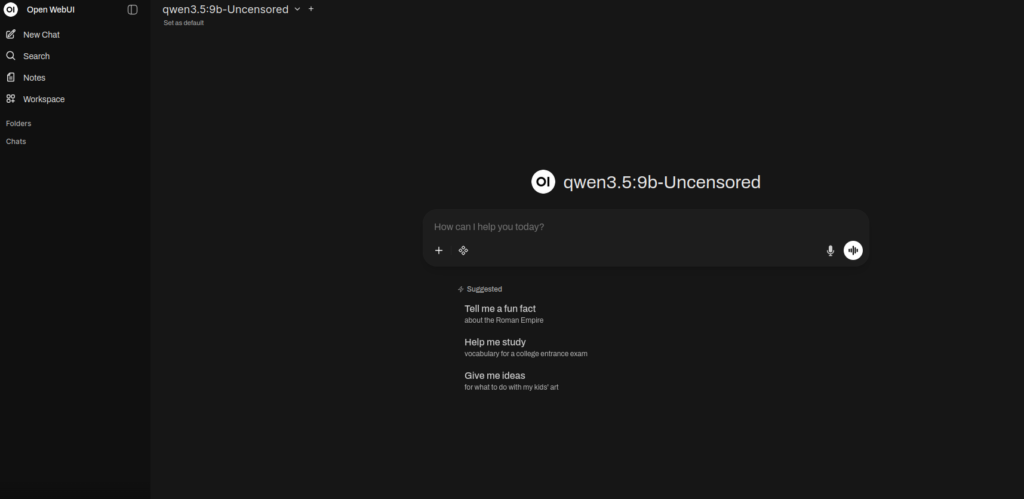
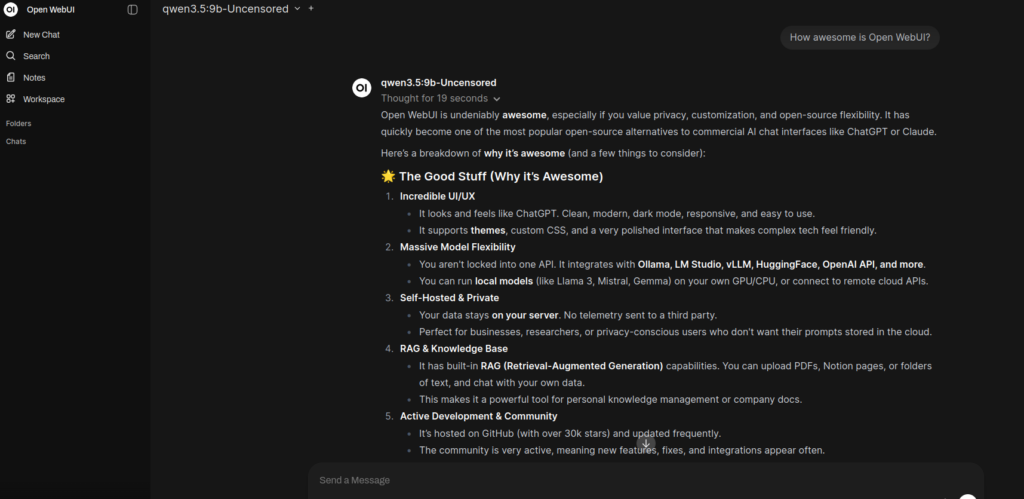
You should now be able to talk to your Ollama LLM model through this interface.
Extending Functionality and Integrations
Now that you have Open WebUI up and running, you can continue to set up WebSearch, WebFetch, and RAG so that your LLM can actually search the web before answering your questions. Open WebUI is also completely extensible making use of MCP servers.
Leave a Reply